Painting with the Snap Tool
You use the Snap tool by simply dragging on a feature of interest. The contour line that snaps to the gradient that defines the edges of the region will be filled automatically when you release the mouse.
 How to Paint with the Snap Tool
- Select the required 2D view.
- Select Single slice mode (see ROI Painter Tool Settings).
- Click the Snap
 tool.
tool.
- Select the dataset that will provide the threshold values for computing the gradient in the drop-down menu.
- Do the following:
- Hold down Left Ctrl (or your configured Add with key) and then drag inside the feature you want to label. The contour line will snap to the gradient that defines the edges of the region, as shown below.
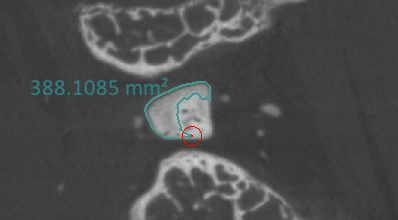
Release the mouse or configured Add with key to label pixels within the contour line.
- Hold down Left Shift (or your configured Remove with key) and then drag inside the feature you want to remove from the selected region. The contour line will snap to the gradient that defines the edges of the region.
Release the Seed key to remove pixels from the region.
Note You can use the scroll wheel on your mouse to increase or decrease the brush size, if required. Brush sizes can also be set in the Brush size box.
Note Refer to Configured Actions for the Snap Tool for additional information about the configured actions for the Snap tool.
- Hold down Left Ctrl (or your configured Add with key) and then drag inside the feature you want to label. The contour line will snap to the gradient that defines the edges of the region, as shown below.